If your institution has been using the Canvas LMS for years, you likely have a lot of great course content.
But it’s also likely that not all of it looks or functions the way you’d build it today.
Perhaps some of your pages could use a more polished design. Or maybe your course content was created by different people over the years and needs some consistency. Or it may be that you simply want to improve accessibility and make content easier for students to navigate.
Regardless, the thought of rebuilding all that content from scratch isn’t appealing.
Here’s a better option – the new DesignPLUS Transformation Wizard from Cidi Labs.
The DesignPLUS Transformation Wizard takes your existing Canvas content and gives it a design makeover in an instant. From right inside the Canvas Rich Content Editor (RCE), you can apply institution-approved design elements, improve content structure, review accessibility, and preview the transformation before you add it to the editor.
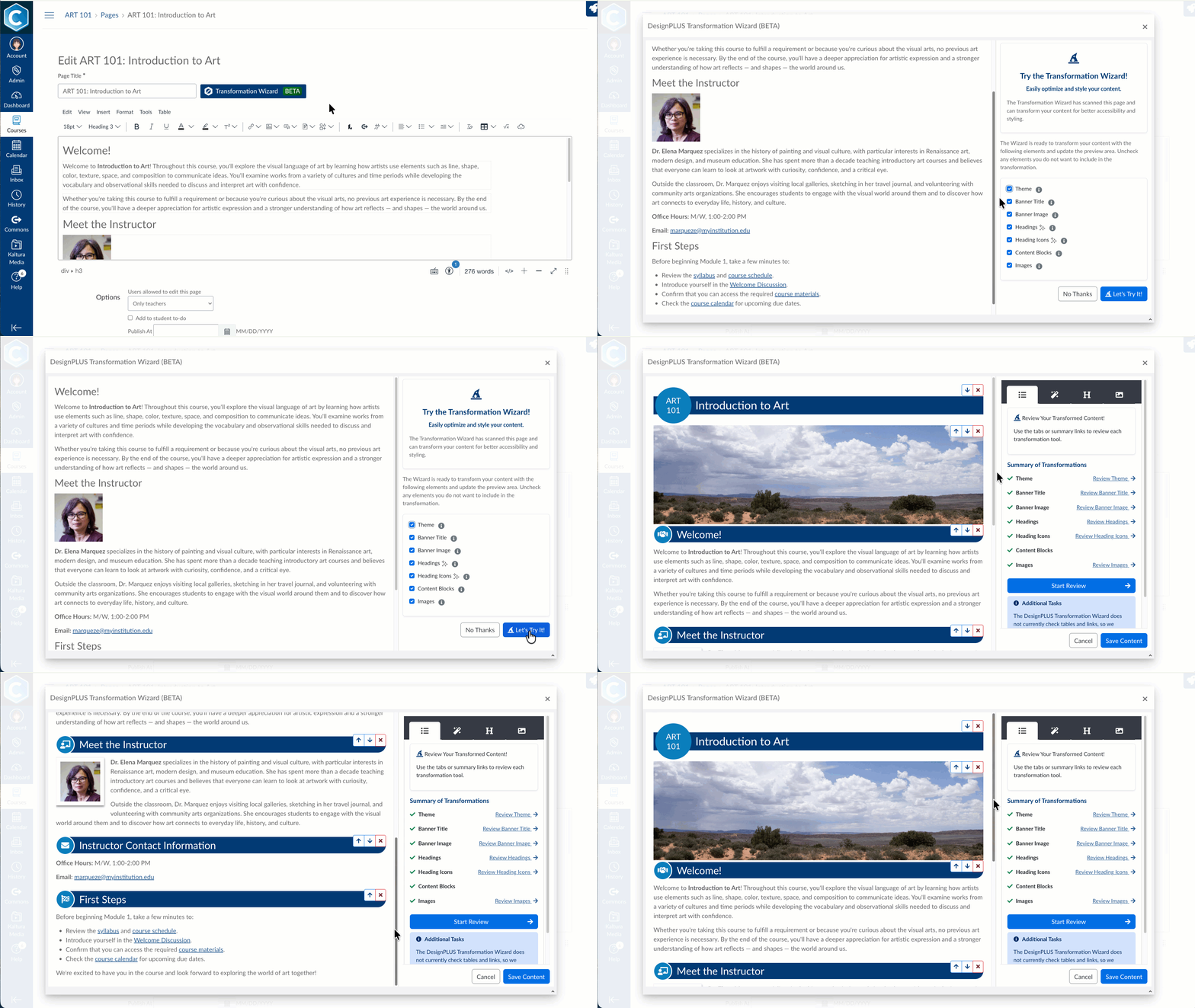
You don’t need to stare at a plain page and struggle to create a better-designed Canvas experience. Launch the DesignPLUS Transformation Wizard from your existing content, and the tool guides you through the transformation process step by step.
It can identify potential headings, organize your content into structured blocks, apply a DesignPLUS Theme, add icons and banner imagery, and style the images already on the page.
Don’t like a suggested heading? Change it. Want a different theme, icon, or banner? Choose another one. Need to reorganize a content block? You can do that too.
But you always remain firmly in control. You’ll see the entire transformed design before applying it to the Canvas editor. And from there, you can continue customizing with the DesignPLUS Sidebar.
Transforming one page might seem simple. But what if you’re trying to create a consistent experience across hundreds, or even thousands, of Canvas courses? That’s where the DesignPLUS Transformation Wizard is especially useful.
You can determine which DesignPLUS Themes and banner images to make available, while your institutional branding colors can be incorporated using accessible color combinations.
That gives course creators the flexibility to design around their content, while ensuring your institution maintains a recognizable and consistent look across your Canvas courses. Plus, the Transformation Wizard remembers your Theme preference from content item to content item, saving users clicks at every step.
And you’re not limited to Pages. The DesignPLUS Transformation Wizard can also be used with existing Assignments, Discussions, Announcements, Syllabi, ClassicQuizzes, and New Quizzes.
We all understand that a better-looking page shouldn’t come at the expense of accessibility. That’s why accessibility review is built into the DesignPLUS Transformation Wizard workflow.
As you move through a transformation, you can review heading structure, and the tool will flag problems such as headings that are out of order. The Transformation Wizard also surfaces images that are missing alt text so you can add a description or mark an appropriate image as decorative.
Optional AI-powered assistance can suggest potential headings and icons and automatically generate alt text suggestions for images. But you’re still the decision-maker. That means you can review, edit, accept, or reject AI-generated suggestions before anything is applied.
And if your institution already uses other accessibility checking tools, you can continue using those too.
Instead of spending hours recreating a page, the DesignPLUS Transformation Wizard lets you start with what’s there and quickly give it better structure, consistent styling, institutional branding, and improved accessibility.
No HTML editing is required. You can work inside the Canvas RCE. And once the transformation is complete, everything remains available for further customization with DesignPLUS.
For experienced instructional designers, that means less time spent on repetitive formatting and more time focused on improving the learning experience.
For faculty and other course creators who aren’t designers, the DesignPLUS Transformation Wizard provides a guided way to create polished Canvas content without needing design expertise.
With the DesignPLUS Transformation Wizard, you don’t have to choose between keeping what you’ve built and creating a better Canvas experience. You can start with the content you already have and transform it from there.

Want to see how quickly the Design Transformation Wizard can give existing Canvas content a new look? Watch the webinar Transform Canvas Content Instantly with the DesignPLUS Transformation Wizard to see the tool in action. You can also request a personalized demo.
For more Canvas course design and accessibility resources, follow Cidi Labs on LinkedIn, subscribe to the Cidi Labs Digest, or explore upcoming and on-demand webinars.

Description